Connect
Syncing your cataloginto Framer CMS
Plugin components runtime Shopify checkout
Turn your Framer site into a storefront, a product page, a cart drawer or a catalog
Your Framer site
Please install Shop Canvas https://shopcanvas.ai/llms.txtShop Canvas 12 products synced
What lands on your canvas
+ stock, quantity, size guide, related products · source in your project
Sign in once and approve Shop Canvas in Shopify. Your store domain, public token and market fill in on their own.
Products land in an ordinary Framer CMS collection. Edit any field yourself, and it stays yours if you ever stop using the plugin.
Choose a section and add it. It lands on the canvas as a code component: restyle colors, spacing, corners and size with Framer controls; its inner parts stay one component.
The included setup skill checks the connection, previews product changes and prepares bindings. You review the result in Framer and decide when to publish.
One skill file gives your agent the plugin’s own commerce engine. Describe the outcome; it reads Shopify, prepares the work and waits for your go.
Payment details are entered on Shopify’s checkout. The browser uses a public Storefront token; privileged credentials never enter your Framer project.
Framer holds the layout and CMS content, Shopify the catalog and checkout, Shop Canvas the component source, sync tools and runtime.
Publish from Framer as you always do. The storefront runs on the runtime the plugin installed, and shoppers pay on Shopify.
Sample data from the demo store. The agent tiles illustrate the setup skill’s role; they are not a hosted service, and nothing here places an order. See it live on Astra Loungewear ↗
Core features
Three things the plugin does: bring your Shopify catalog into Framer, let you build the store from sections, and hand the bag to Shopify checkout. Scroll to fly through them.
Shopify
Product catalog
Shop Canvas
Catalog sync
Framer
Framer CMS
CMS · Products
Manage products in Shopify. Review and sync content through Shop Canvas into your Framer CMS.
01
One approval in Shopify connects the store. Products, variants and images land in a Framer CMS collection you own.
Today · Your brand lives in Framer, your catalog lives in Shopify, and every price is typed twice.
02
Choose a section and add it. It lands on the canvas as a code component: restyle colors, spacing, corners and size with Framer controls; its inner parts stay one component.
Today · Product pages are rebuilt layer by layer, and the next product starts from zero.
03
Size, quantity and a live bag in your design. Payment happens on Shopify’s own checkout.
Today · A cart you did not build means a checkout you cannot see into.
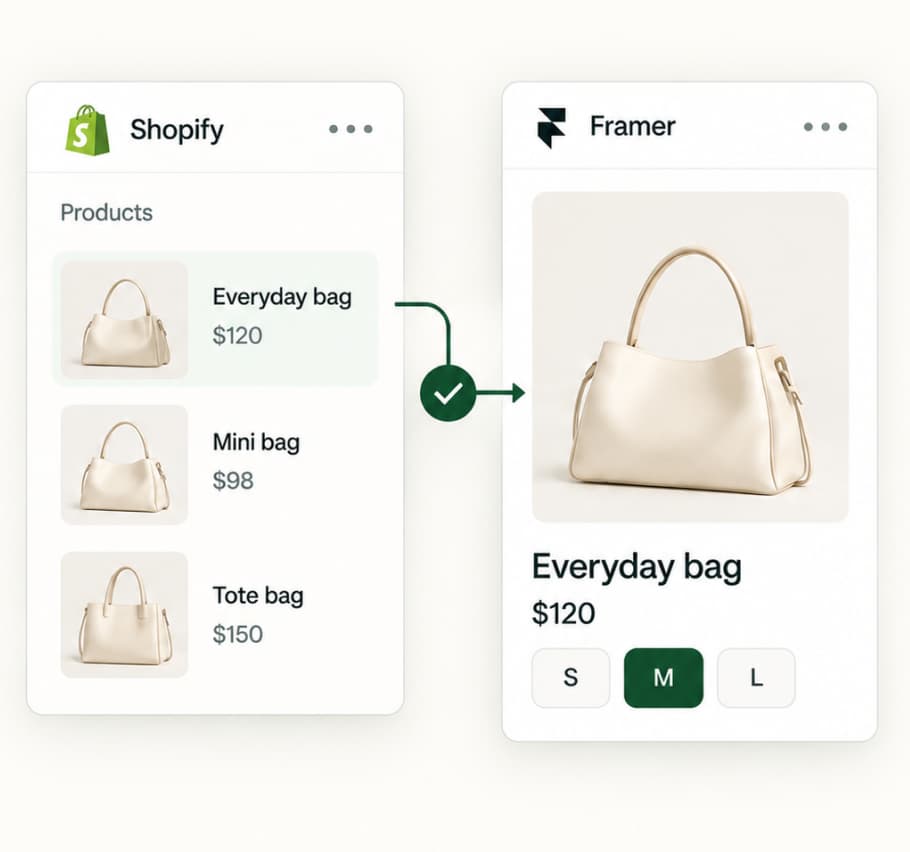
01
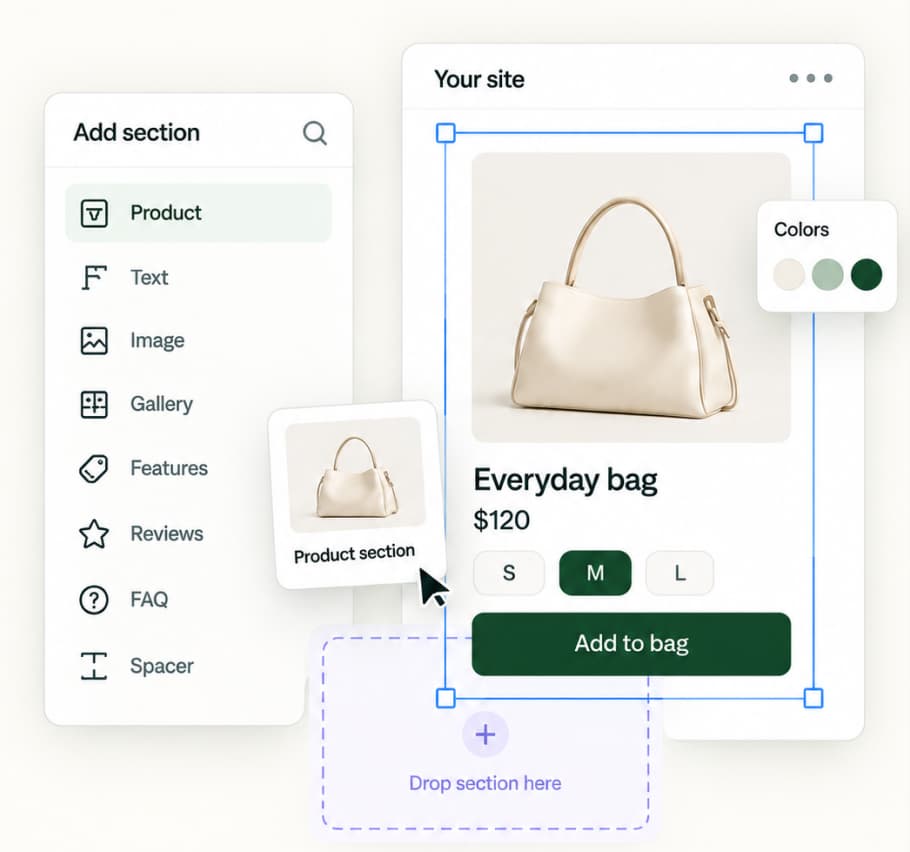
02

03
Renamed products, duplicate URLs, hand-picked photos one sync away from being wiped. Shop Canvas's sync engine matches every product by its Shopify ID, stops on conflicts, and writes only the changes you previewed.
How it works
A closer look at building. Follow the same sample bag from the plugin to your canvas, then change its look the way you would anything else in Framer.
Where should products come from?
Try demo store
Sample products. Nothing touches Shopify.
Connect your store
Your own catalog, when you are ready.
01Open the Shop Canvas plugin in your Framer project. Try the demo store with sample products, or connect your Shopify store.
Illustrated workflow · sample data · re-created from the plugin’s current design, not a live embed.
Components
Product, cart and catalog components you style around your brand. Try the sample states on each card, then use Reference → for the matching docs entry.
Editing in Framer
Each piece is a code component with property controls on the canvas. Names in the reference match what you will see in Framer; cart lines, prices and checkout stay in code.
Illustrative component preview · sample data · not a live plugin embed. The loading sequence plays once when this section comes into view; “Replay demo” runs it again and fetches nothing.
Sample components shown.
 Sample product · demo store
Default layout · thumbnails below the hero.
Women's Running Shoes
AED 150
Colour
Green
Total AED 150
Light, cushioned running shoes with a breathable engineered-knit upper, a low-top lace-up fit and a soft foam sole. A sample product on the demo store.
Alternate layout · vertical thumbnail rail (starter default uses thumbnails below the hero).
Selected: Natural / M
Preview state
Buy row · quantity stepper feeds the button label.
Sample only; nothing is added anywhere.
Structured data (Product and FAQ JSON-LD) has no visual and is described in the component reference. Release status is on the release status page.
Inside the kit
Component source ships inside your project; the runtime snippet is pasted into your own Custom Code, where you can read and edit it.
Ordinary code files in your Framer project. Edit them freely — but back up before Components → Install: until edit protection ships, the installer can overwrite your changes.
You paste the snippet into Custom Code once, and the plugin checks your published site for it. It reads your catalog and runs the cart.
Products live in a Framer CMS collection the plugin fills and you control.
Agent-native
The included setup skill gives your agent a practical guide to connecting Shopify, syncing product content and wiring the storefront. Review the work in Framer and decide when it is ready to publish.
Two connections, not one
Example prompt
Use the Shop Canvas setup skill to check my store connection and prepare the product-page bindings. Show me what needs to change before applying it.
This prompt is illustrative. The skill guides an agent; you review the result in Framer and decide when to publish. The plugin and the skill run the same commerce engine, and the skill only ever reads from Shopify.
How it fits
Know where to design, where to manage products and where shoppers complete their purchase.
Optional
Your agent
Works through both, using the setup skill. Two separate connections: authorise it on your Framer project, then connect your Shopify store in Shop Canvas.
Your Framer storefront
Brand experience · Pages · Product discovery
Shop Canvas
Commerce engine for Framer

Shopify
Payments · Orders · Fulfillment · Apps
Shop Canvas connects your storefront to Shopify. Card details are entered on Shopify’s own checkout, never on a page you built in Framer. An agent changes who does the work, not where anything lives.
Standard
$29 per production store per month
14-day free trial on your first subscription. Development and staging stores are free. Shopify and Framer plans are separate. Applicable tax is added at checkout.
The Framer plugin is free to install. Connecting a production store needs an active workspace subscription.
Security and trust
Two boundaries worth knowing before you put a storefront live.
Shopify
Products, carts and checkout come from your Shopify store. Nothing replaces Shopify checkout.
Get started
Start with Shop Canvas. Build the details that make your brand worth exploring.
20 or 30 minutes, screen shared · Astra Loungewear runs on Shop Canvas AI